For the owner

The whole business, in your pocket.

Everything you need to run the business, from your phone. Know where things stand before you reach the office, approve what is waiting, and run payroll in minutes.

  • Add staff and set their salary
  • Mark attendance for staff with no phone
  • Approve leave and advances
  • Run payroll and issue payslips
  • See where field staff are
A business owner reviewing Paylap HRMS on his phone in his office
2 leave requestsWaiting for you
15 screens

What the owner sees

Every screen, in plain words: what it is, what you do there, and how it helps.

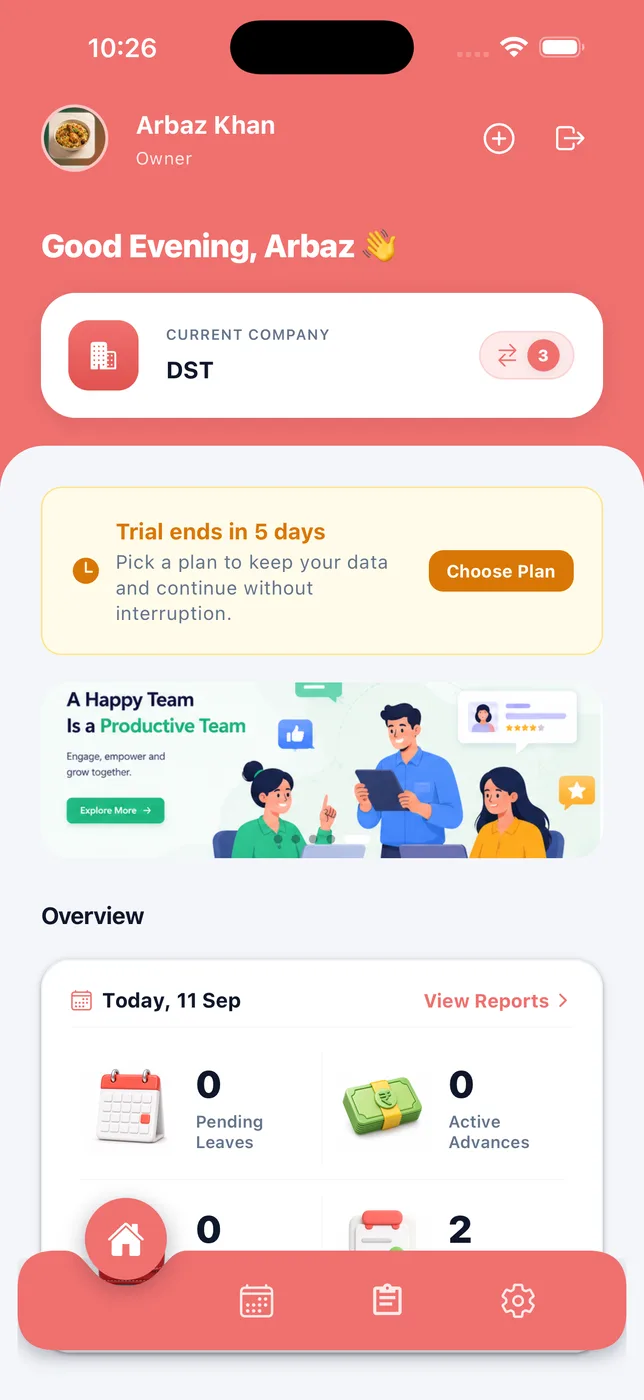
Paylap HRMS app screen: Home

Home

What
The first screen you see.
You do
Check today at a glance: who is in, and what needs approval.
Helps
You know where the business stands before you reach the office.

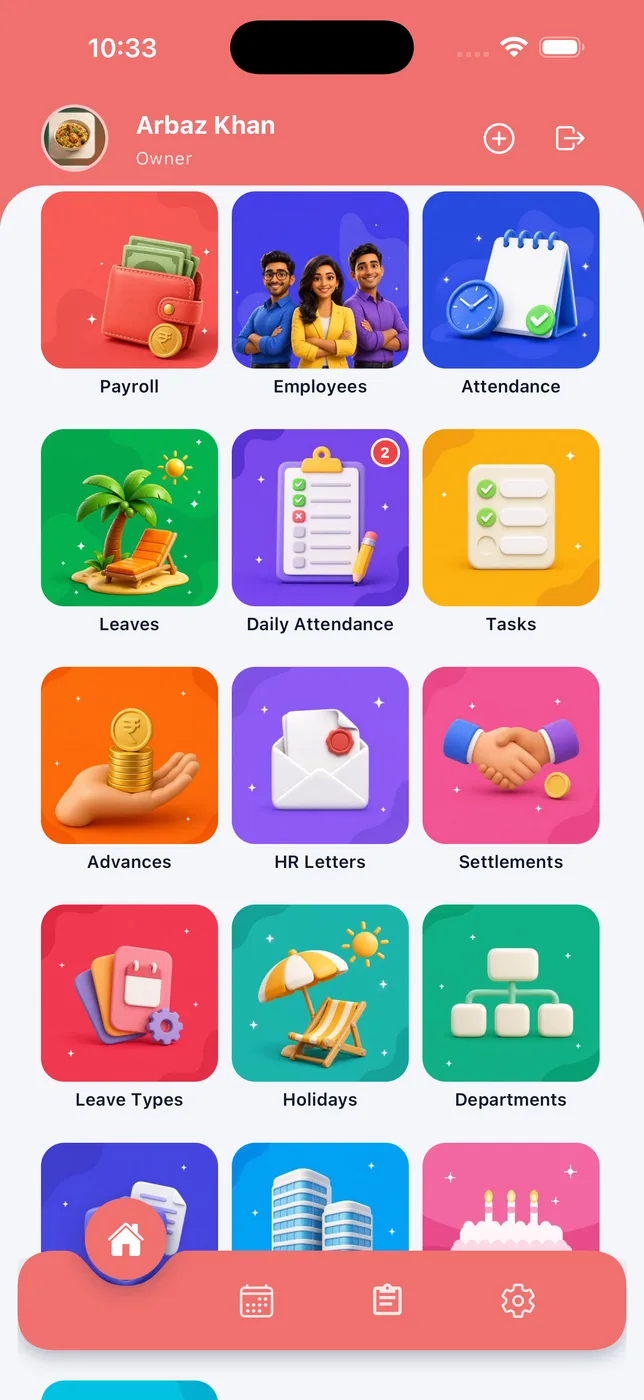
Paylap HRMS app screen: All modules

All modules

What
Every part of the app, as tiles.
You do
Tap any tile to open it.
Helps
Nothing is more than two taps away.
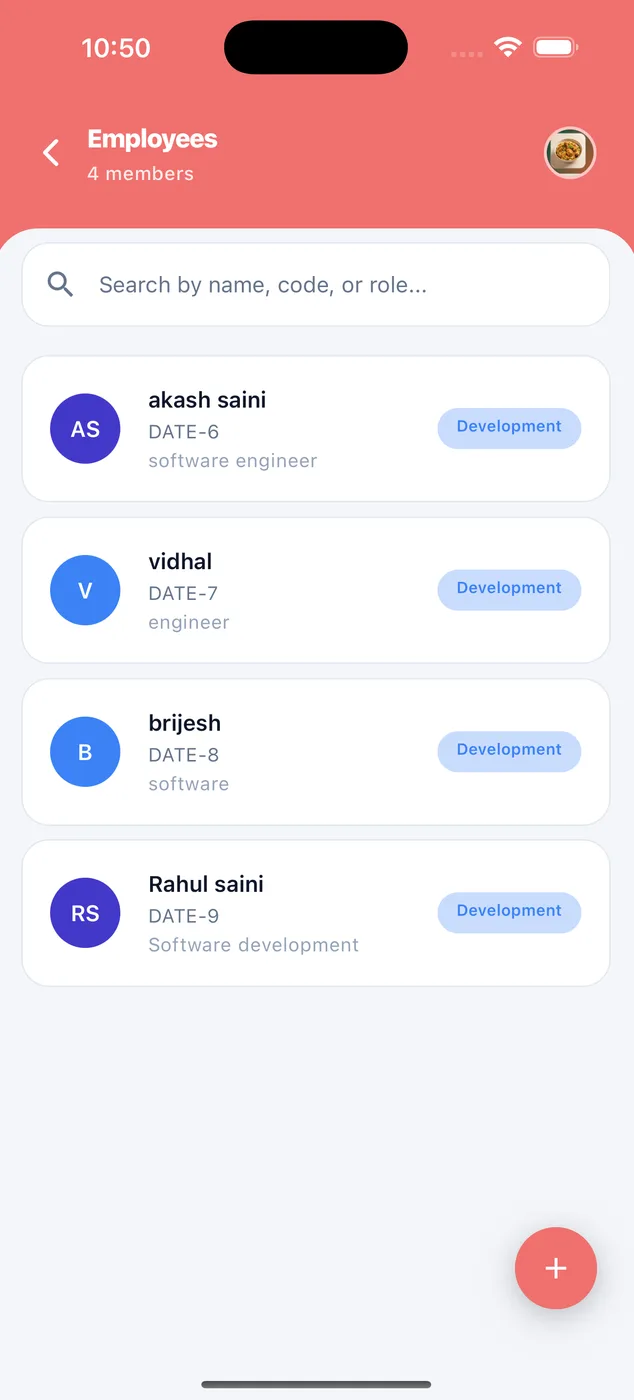
Paylap HRMS app screen: Employees

Employees

What
Your full staff list.
You do
Search by name or code. Tap + to add someone new.
Helps
One list, always current.
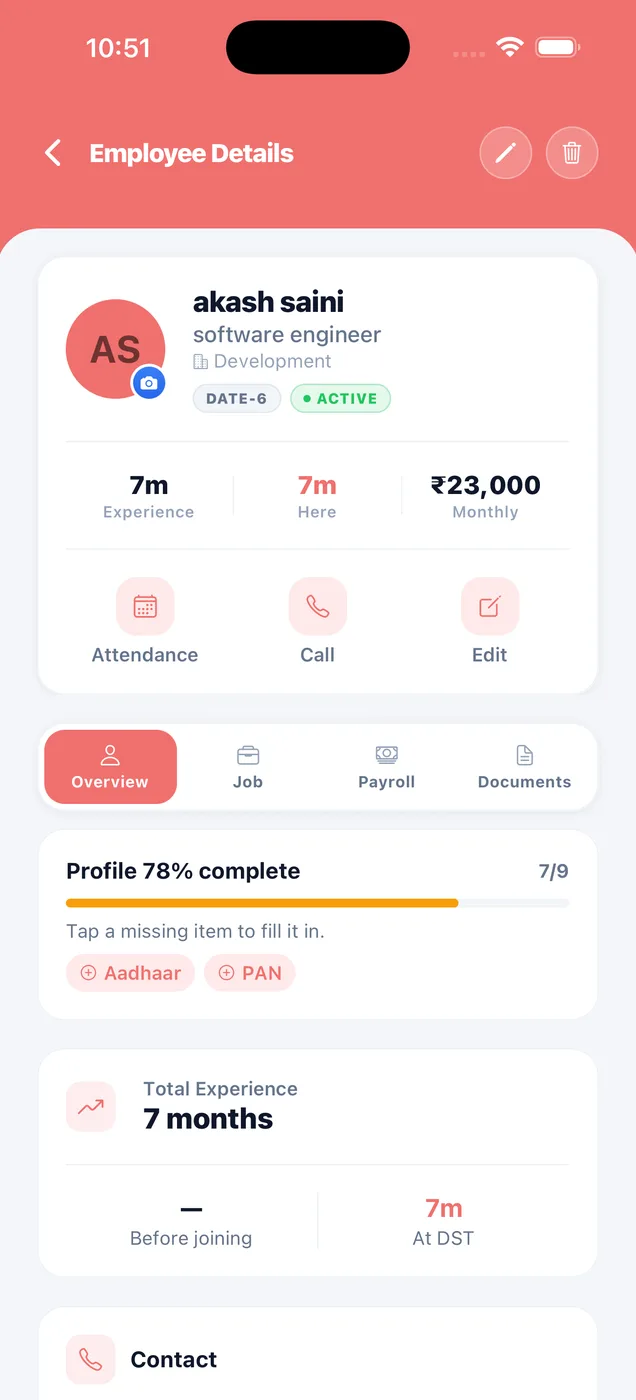
Paylap HRMS app screen: Employee file

Employee file

What
Everything about one person.
You do
See their job, salary and documents. Edit, call or offboard them.
Helps
No more paper files.
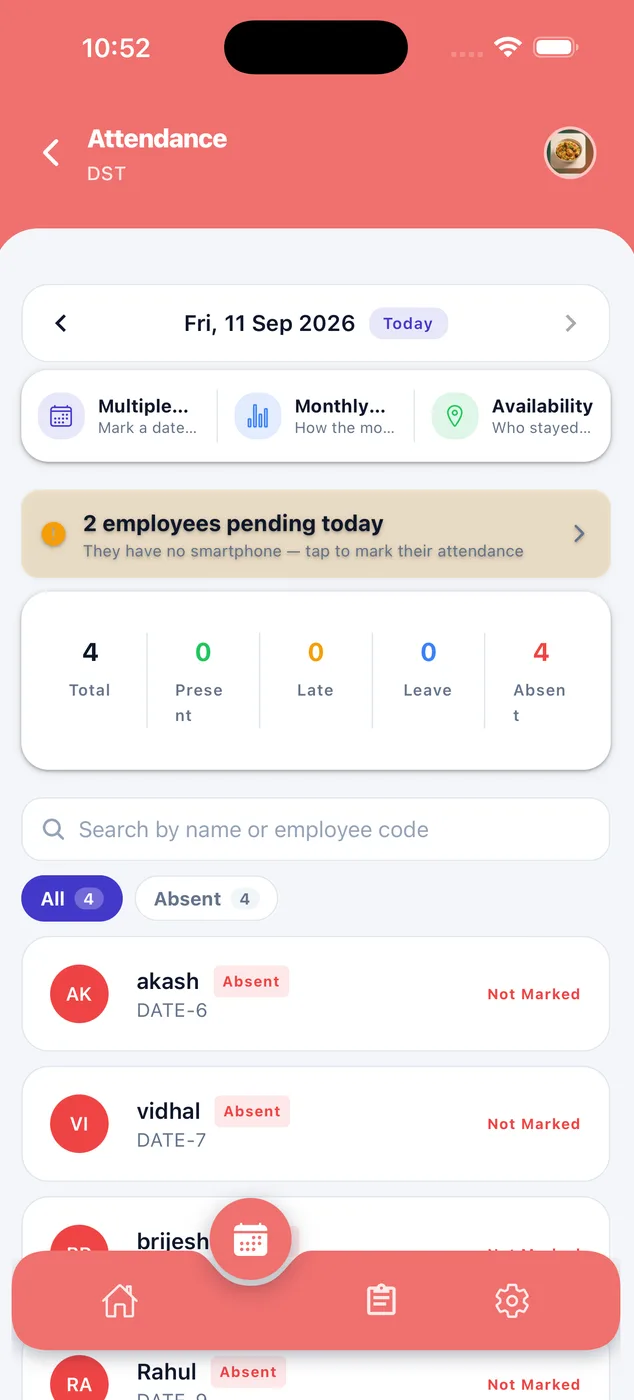
Paylap HRMS app screen: Attendance

Attendance

What
Who came in today.
You do
See present, late, leave and absent. Search or filter the list.
Helps
The register, but it adds itself up.
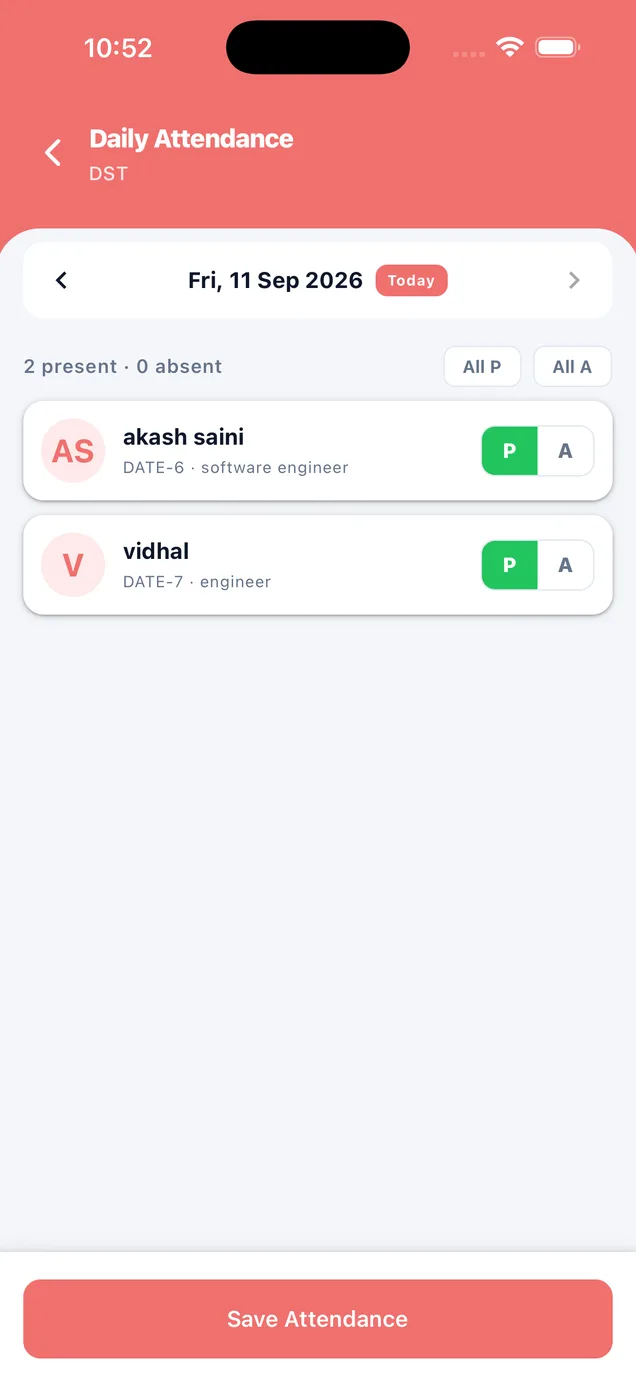
Paylap HRMS app screen: Daily attendance

Daily attendance

What
For staff who have no smartphone.
You do
Tap P or A for each person, or mark everyone at once.
Helps
Workers without phones still get counted correctly.
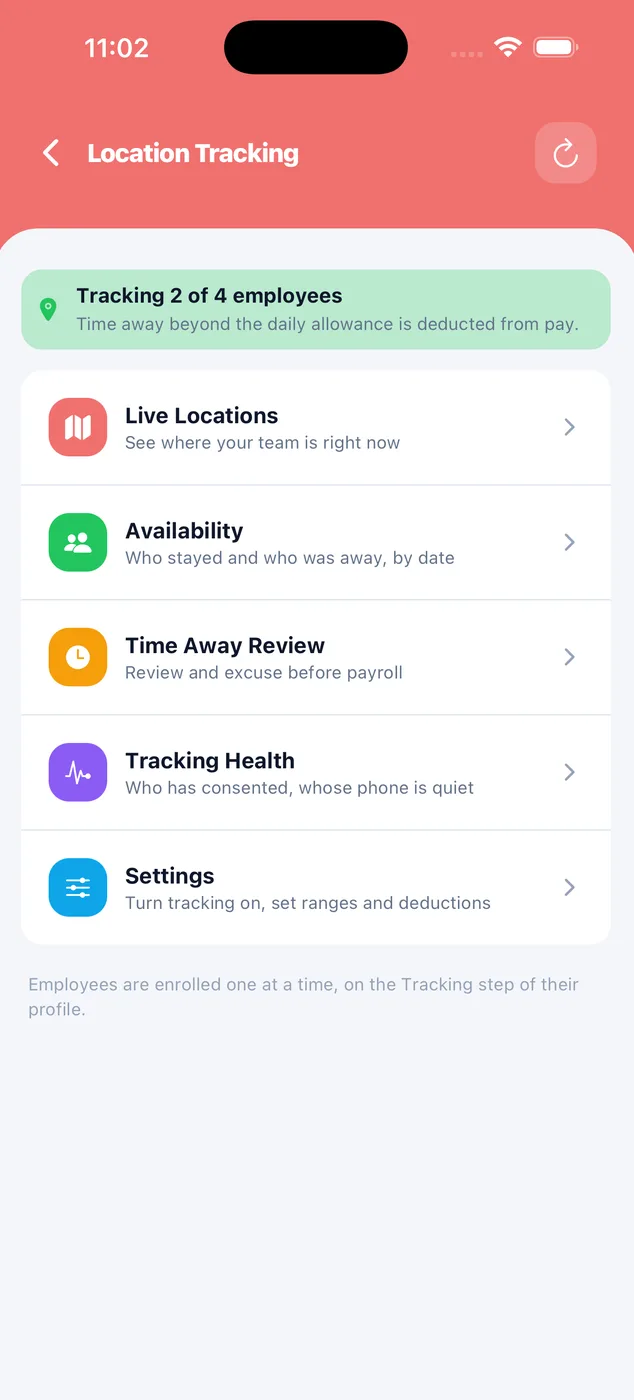
Paylap HRMS app screen: Location tracking

Location tracking

What
Where your team is during work hours.
You do
Open the live map, availability, or the review queue.
Helps
Only during the shift, and only for staff who agreed.
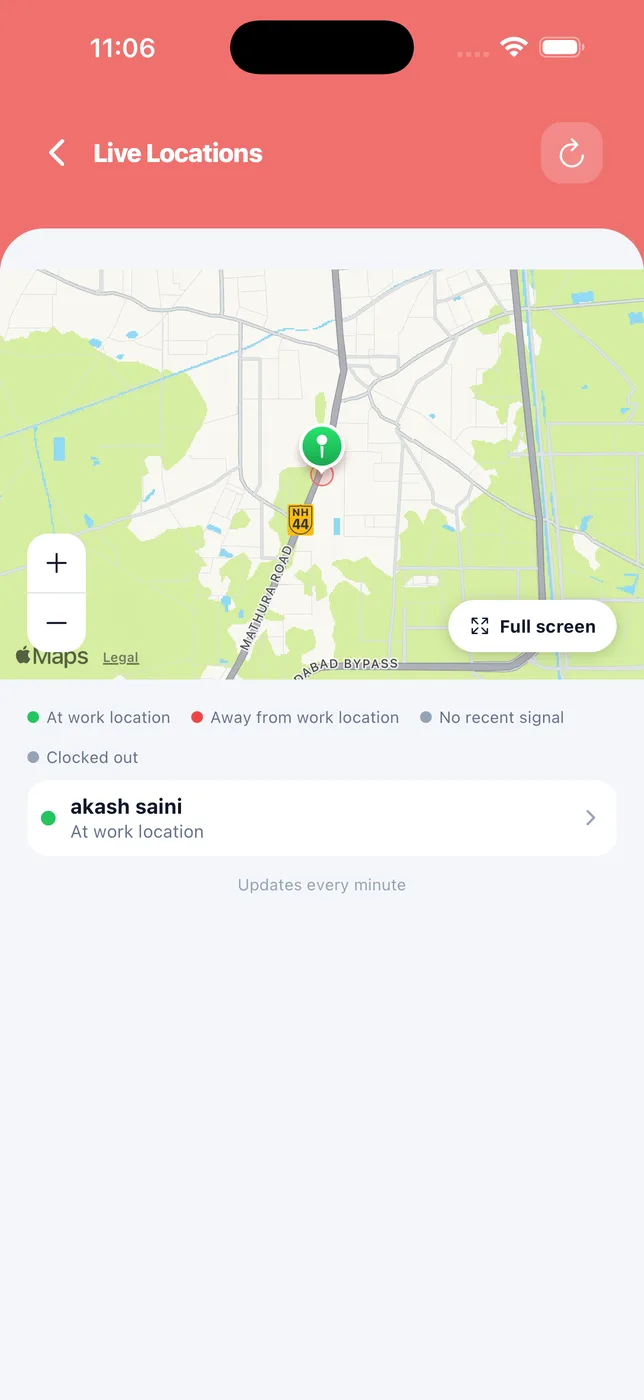
Paylap HRMS app screen: Live locations

Live locations

What
A live map of your tracked staff.
You do
See who is at work, who is away, whose phone is quiet.
Helps
You know without ringing anyone.
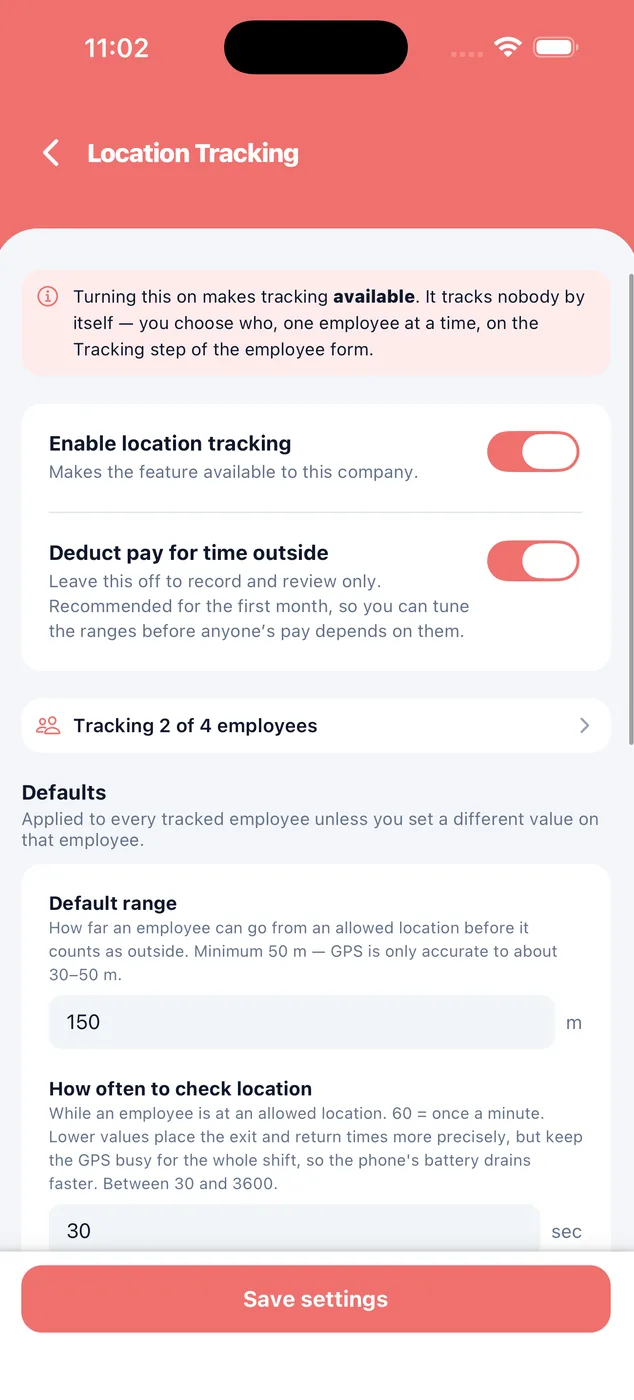
Paylap HRMS app screen: Tracking settings

Tracking settings

What
The rules tracking follows.
You do
Set the range, how often to check, and whether pay is deducted.
Helps
You can record only, and turn deductions on later.
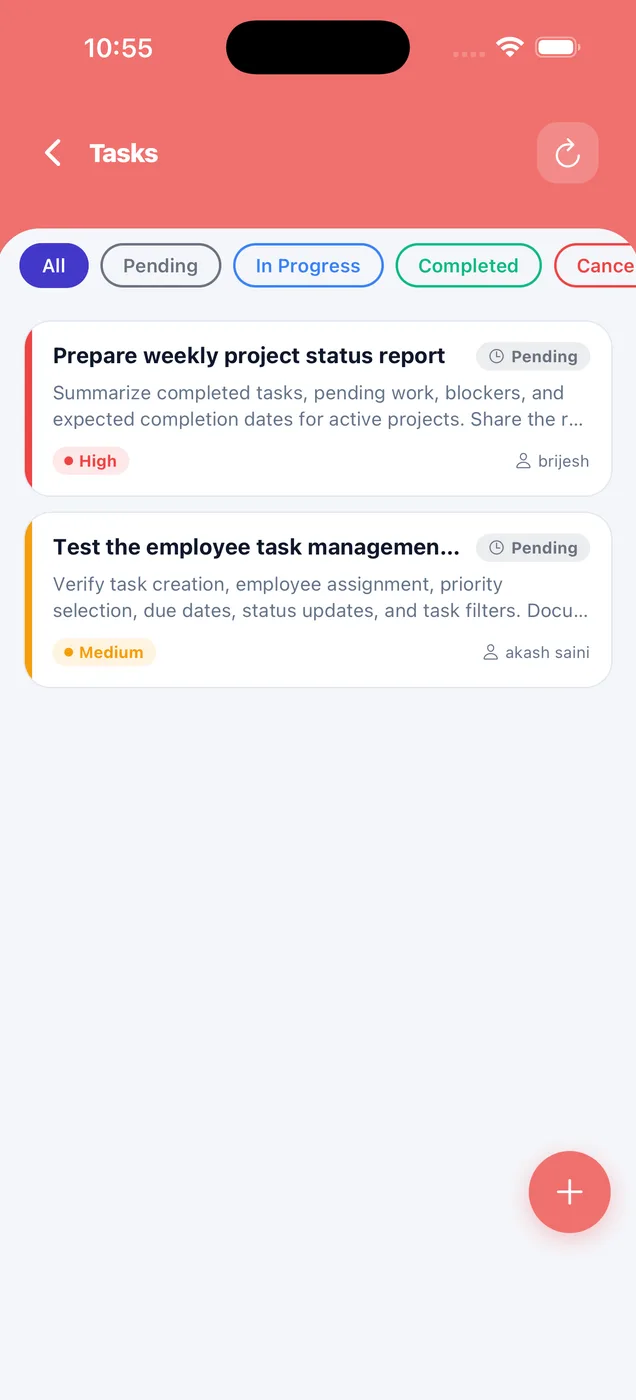
Paylap HRMS app screen: Tasks

Tasks

What
Work you have given to staff.
You do
Create a task, set priority, assign it to someone.
Helps
You can see what is done and what is pending.
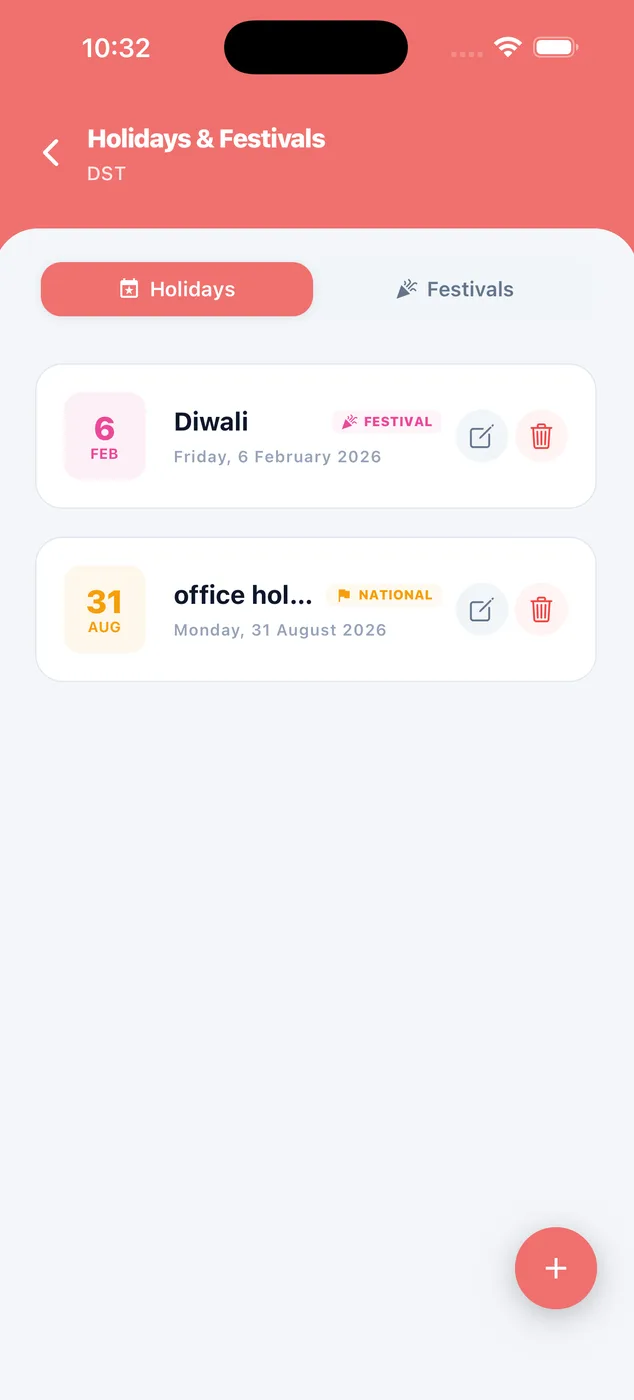
Paylap HRMS app screen: Holidays

Holidays

What
Your company calendar.
You do
Add holidays and festivals.
Helps
Holidays stay paid, and salary counts them correctly.
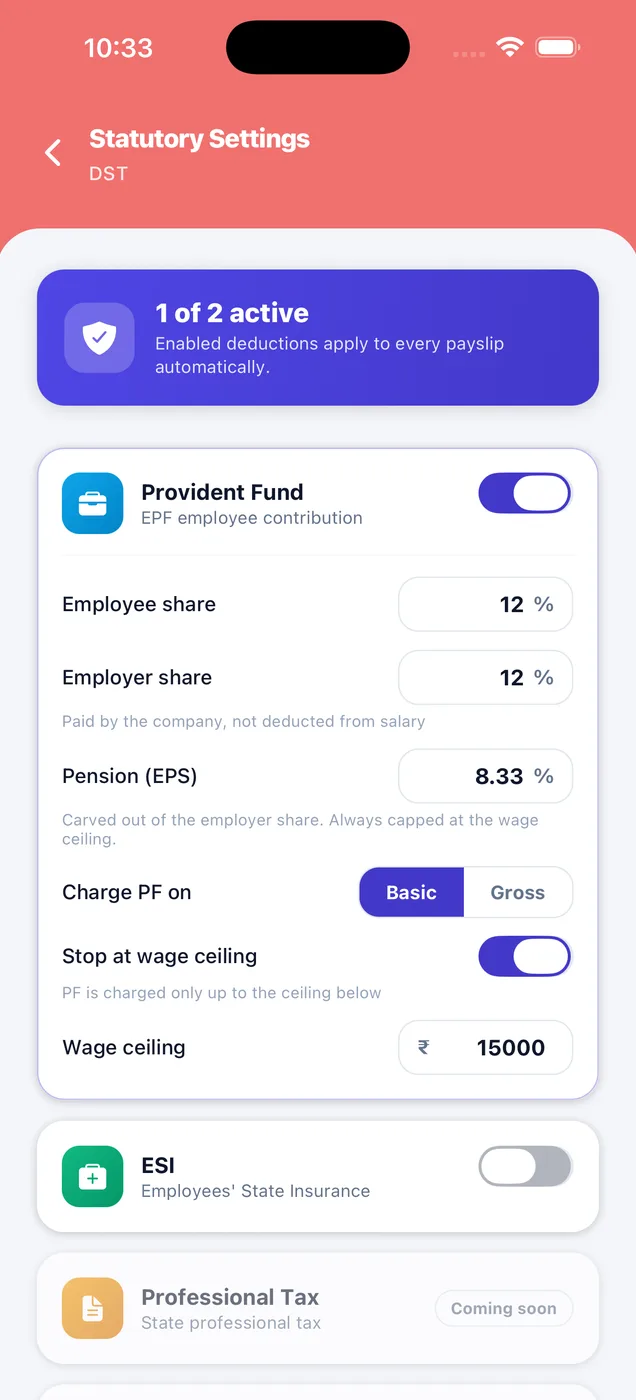
Paylap HRMS app screen: PF and ESI

PF and ESI

What
Your statutory rates.
You do
Set the shares, the wage ceiling and who is covered.
Helps
Set it once, and every payslip follows it.
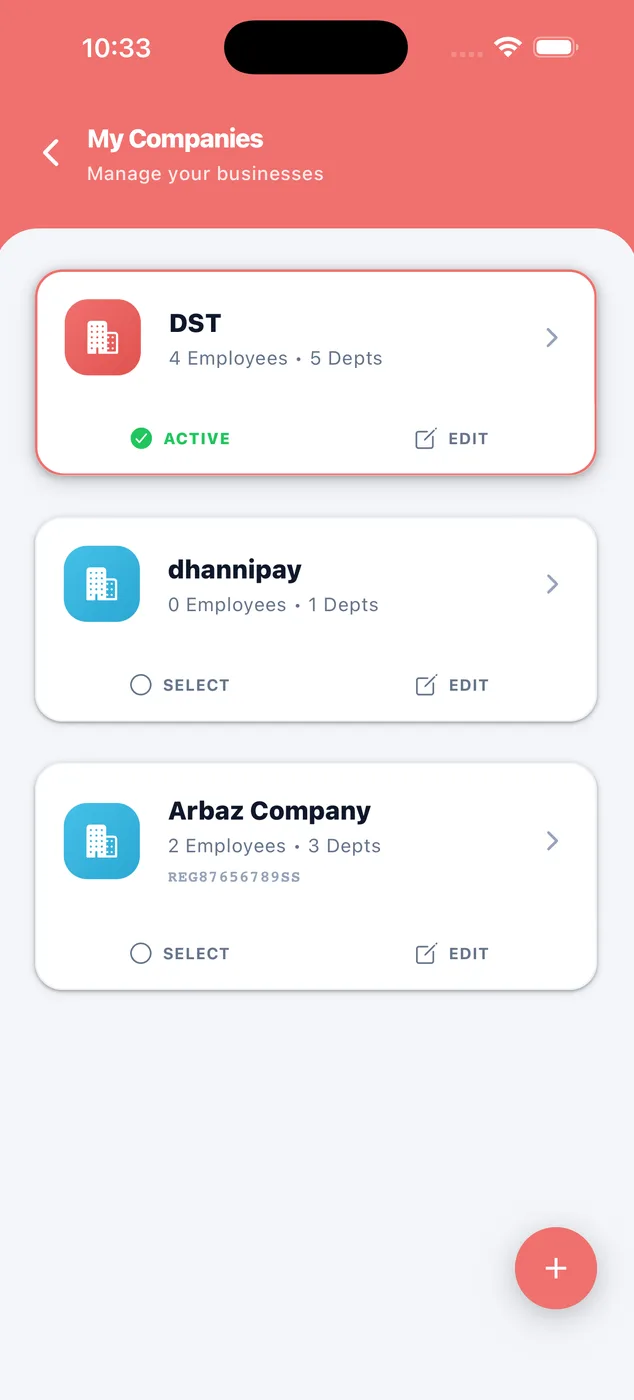
Paylap HRMS app screen: My companies

My companies

What
Every business you run.
You do
Switch between them, or add another.
Helps
One login for all of them, at no extra cost.
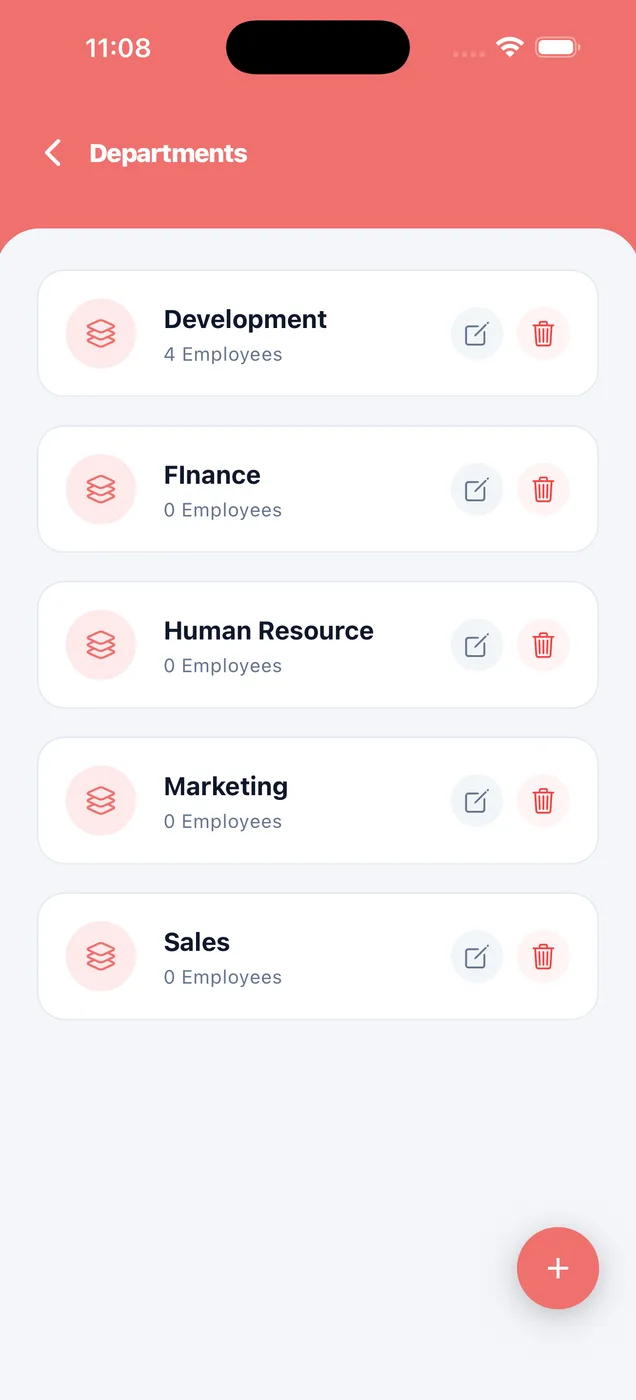
Paylap HRMS app screen: Departments

Departments

What
How your team is grouped.
You do
Add or rename a department.
Helps
Reports and headcount break down by these.
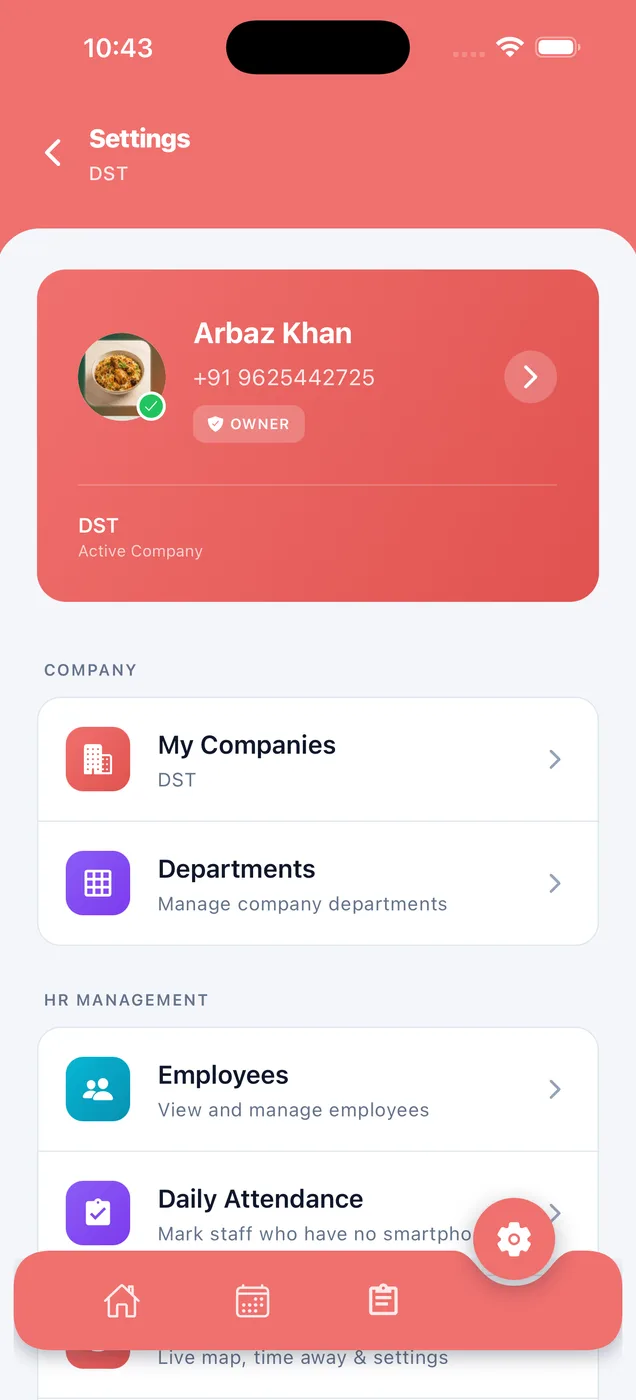
Paylap HRMS app screen: Settings

Settings

What
Every setting in one menu.
You do
Reach companies, staff, payroll, leave types and PF from here.
Helps
Plain names, nothing technical.
Payroll & payslips

The month adds itself up

You read it, you approve it, and the slips go out.
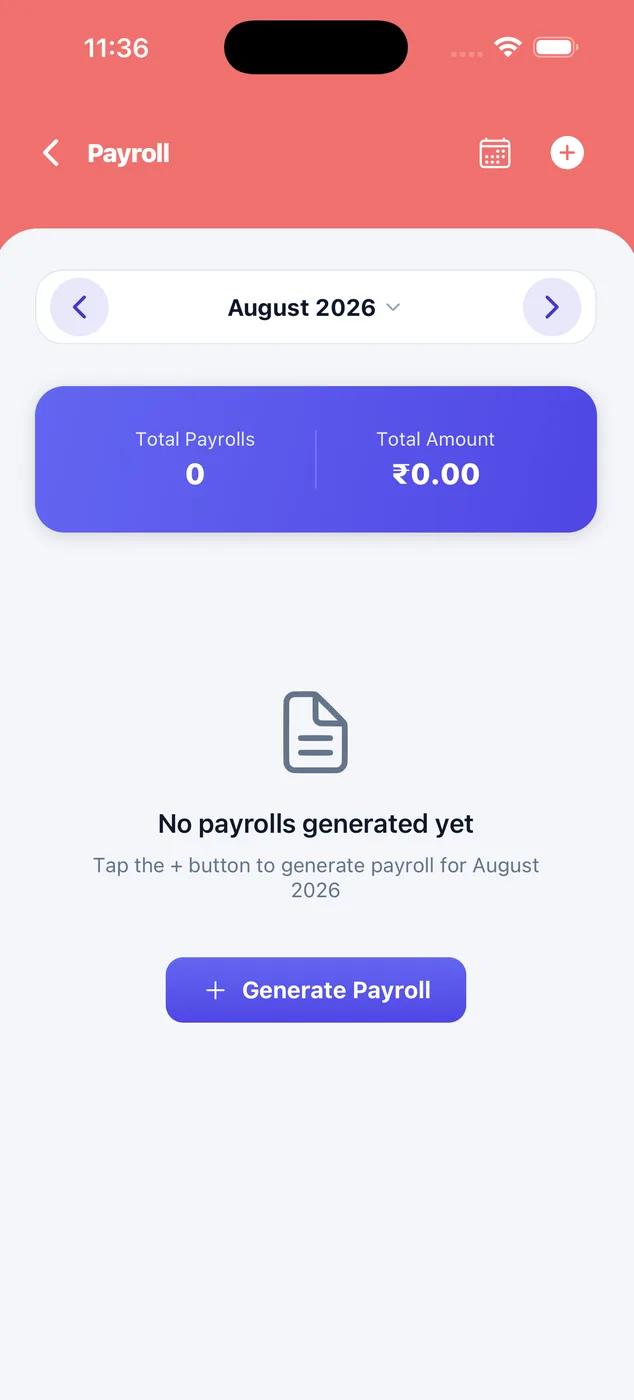
Paylap HRMS app screen: Before you start

Before you start

What
The month with no payroll yet.
You do
Tap Generate Payroll.
Helps
One button. Nothing to set up first.
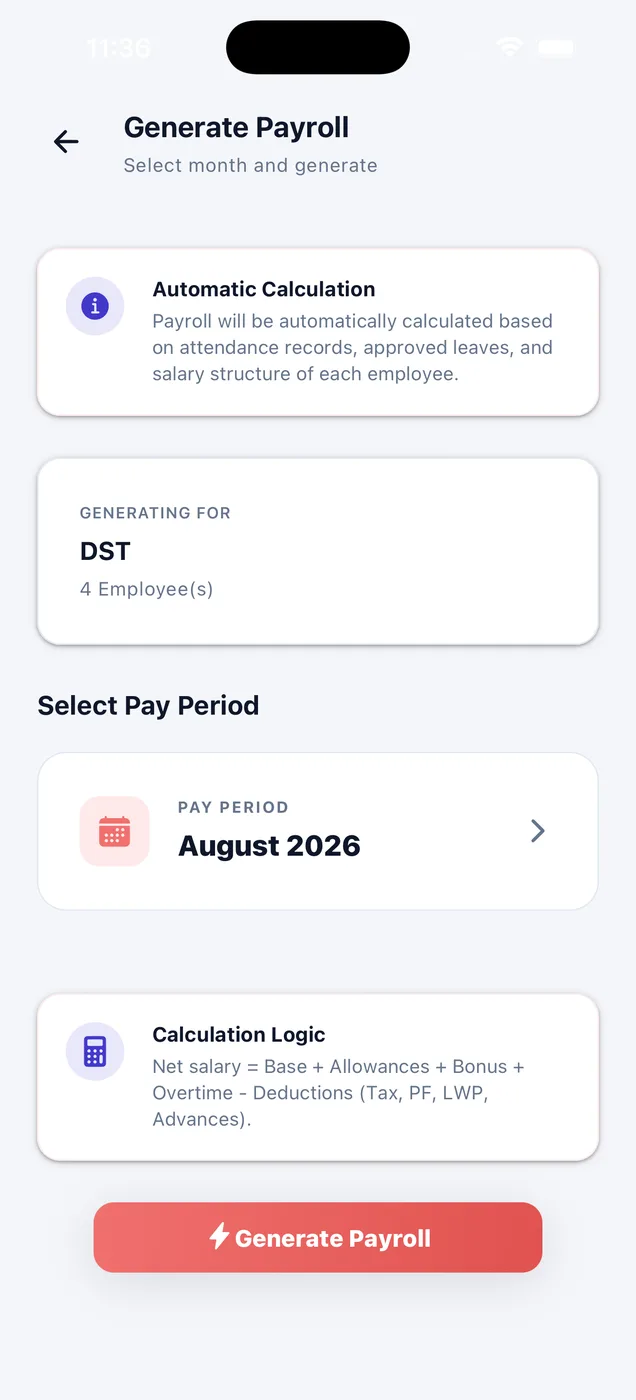
Paylap HRMS app screen: Generate payroll

Generate payroll

What
Pick the month and go.
You do
Check the month, then tap Generate.
Helps
It reads attendance, leave and each salary by itself.
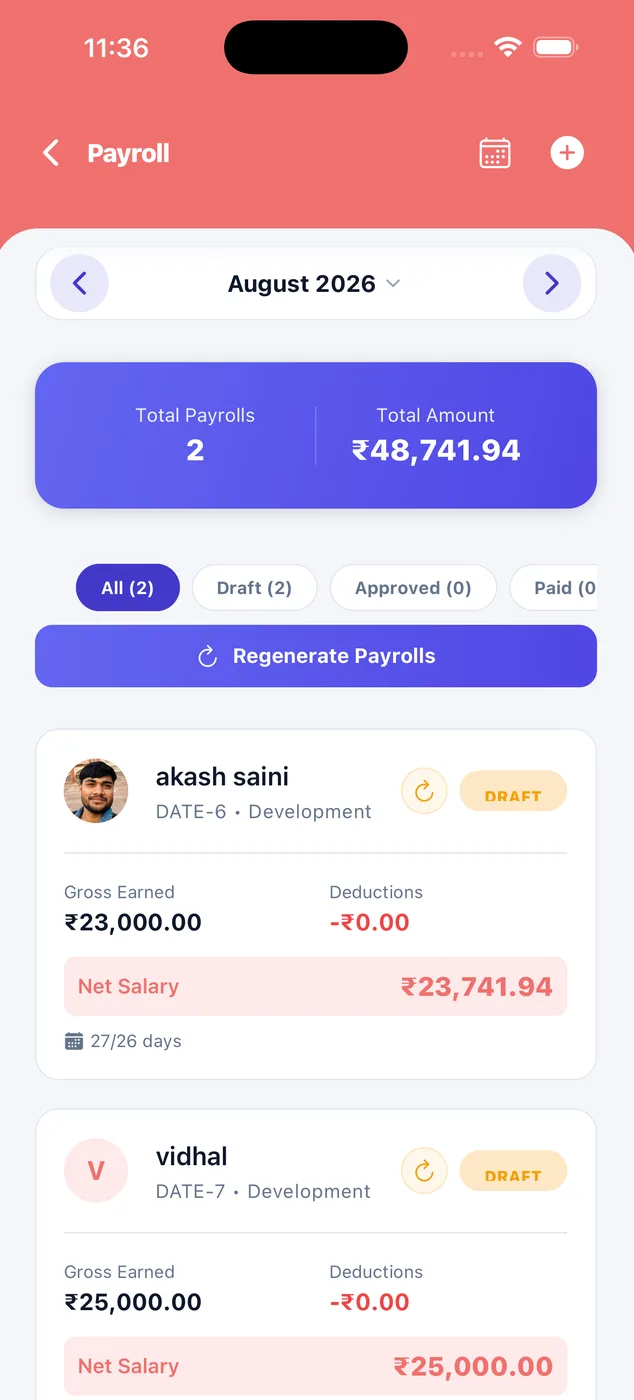
Paylap HRMS app screen: The month

The month

What
Everyone you are paying, and the total.
You do
Filter by draft, approved or paid. Open anyone.
Helps
You see the wage bill before you commit to it.
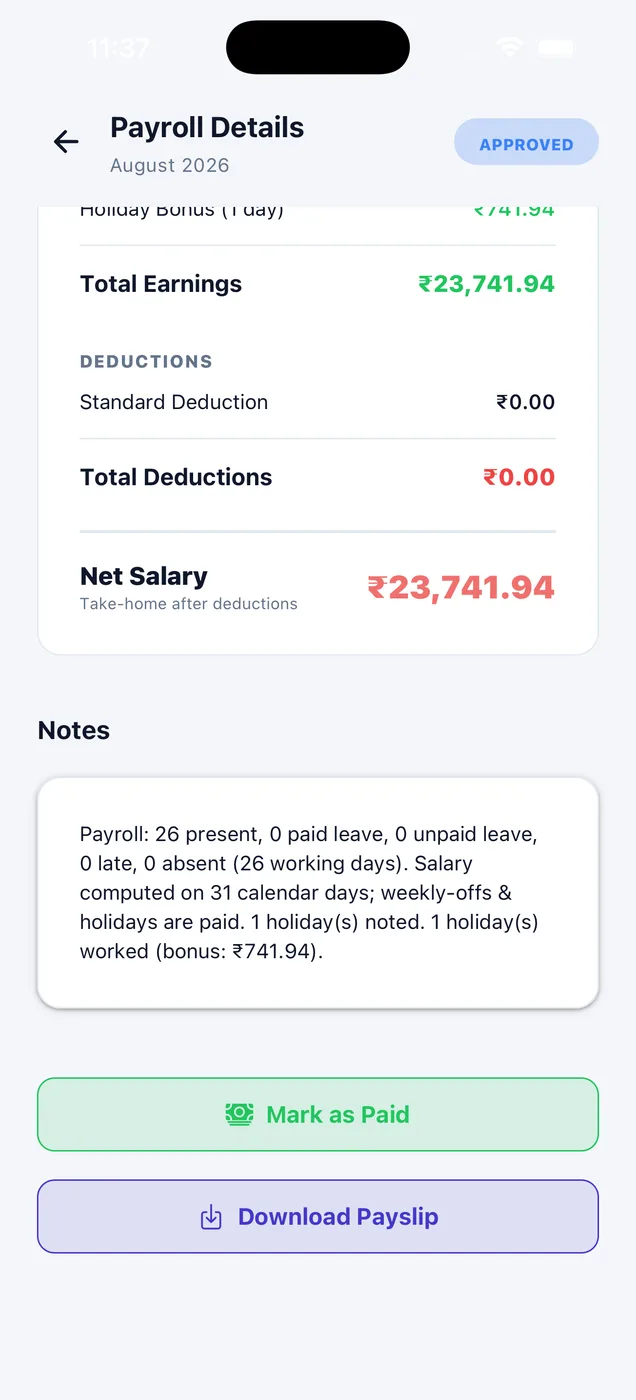
Paylap HRMS app screen: After you approve

After you approve

What
The same payroll, now locked.
You do
Mark it paid, or download the payslip.
Helps
Approved figures cannot drift afterwards.
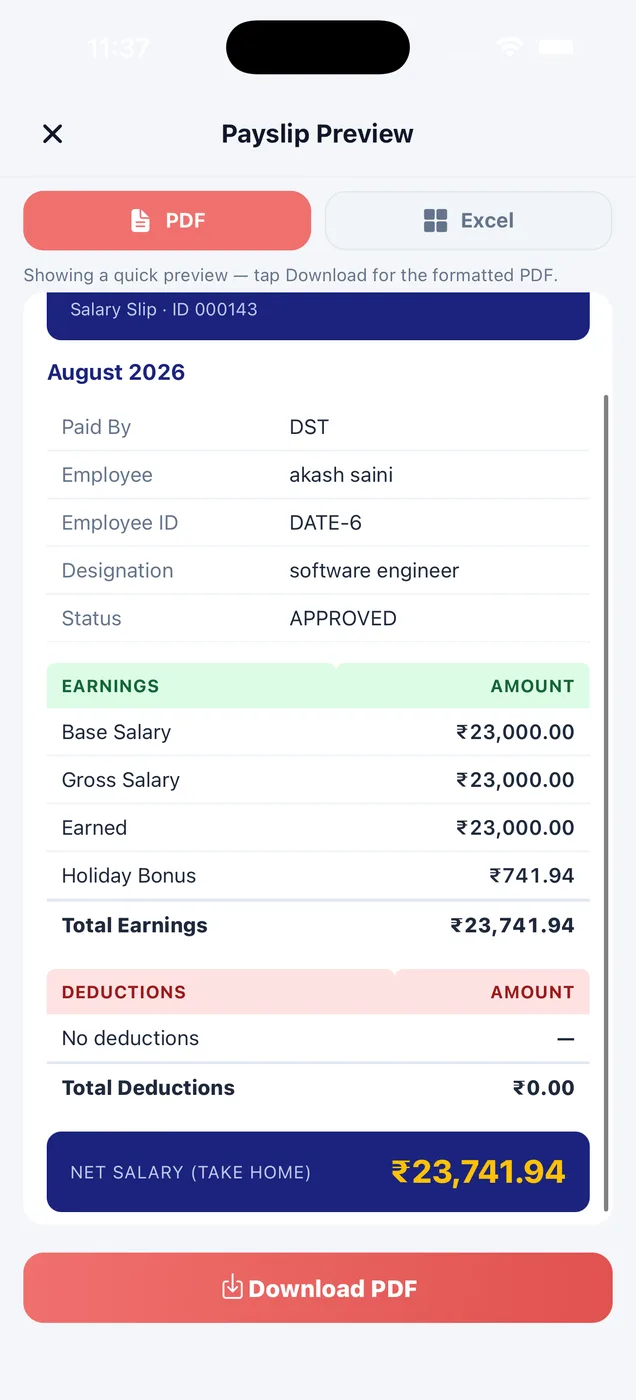
Paylap HRMS app screen: Payslip preview

Payslip preview

What
The finished slip before it goes out.
You do
Read it, then download as PDF or Excel.
Helps
What you see here is exactly what your employee gets.

How a salary is worked out

Seven steps, a real worked example, and the Draft, Approved and Paid states.

Read the payroll page
Get started today

Run the business from your phone

Download the app, add a few staff and run your first month. Or book a demo and we will set up a company with your staff and show you a real payslip.

QR code for Paylap HRMS on the App StoreiPhoneScan to download
QR code for Paylap HRMS on Google PlayAndroidScan to download
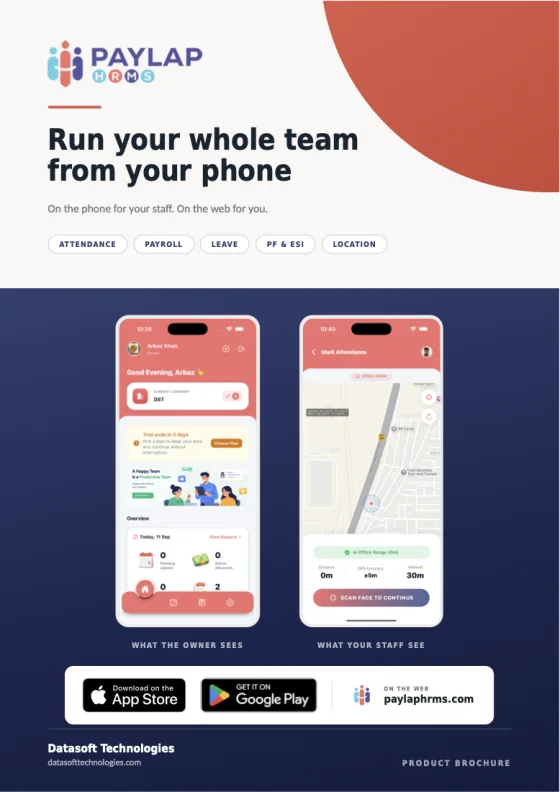
Cover of the Paylap HRMS product brochure
The product brochure 40 pages. Every screen, explained. Download PDF
Get the app Brochure